We have all experienced this incredibly frustrating moment at least once. You receive an important email from a client in Hindi, or you download a beautifully crafted PDF document in Tamil, but when you open it, all you see is a screen full of weird, empty square boxes. These boxes, often affectionately (and sometimes angrily) referred to as “tofu” by developers, mean your computer does not know how to display the text. If you are struggling with this exact problem, you are in the right place. In this comprehensive tutorial, we will show you exactly how to fix font rendering issues on Windows 11 so you can get back to reading and writing in your mother tongue without any interruptions.
As digital content consumption in Indian regional languages skyrockets in 2026, operating systems must keep up. Windows 11 is incredibly powerful, but sometimes it needs a little manual tweaking to recognize complex scripts like Devanagari (used for Hindi, Marathi, and Haryanvi) or Dravidian scripts (like Tamil, Telugu, and Kannada). If you want to quickly fix font rendering issues on Windows 11, let us dive deep into why this happens and how to resolve it permanently.
Why Do You See Square Boxes Instead of Text?
Before jumping to the solutions, it is essential to understand the root cause. A computer does not “read” letters like a human; it reads numerical codes. The global standard for assigning numbers to characters is called Unicode. When a website or a document tells your computer to display a specific Unicode character (for example, the Tamil letter “அ”), your operating system searches its installed font library for the visual representation (the glyph) of that code.
If Windows 11 cannot find a font that contains the glyph for that specific regional language, it throws its hands up in the air and displays a hollow square box instead. This simply means “Character Not Found.” By understanding this, we realize that the solution to fix font rendering issues on Windows 11 is straightforward: we must provide the operating system with the right fonts or language packs.
Method 1: Installing the Correct Language Pack in Windows 11
The most robust and official way to fix font rendering issues on Windows 11 is by installing the native language pack directly from Microsoft. This not only installs the correct display fonts but also adds regional formatting and keyboard support.
Step-by-Step Instructions:
- Open Settings: Press the Windows Key + I on your keyboard to open the Windows 11 Settings app.
- Navigate to Time & Language: On the left-hand sidebar, click on “Time & language”.
- Select Language & Region: Click on the “Language & region” tab on the right side.
- Add a Language: Look for the “Preferred languages” section and click the blue “Add a language” button.
- Search for Your Language: A pop-up window will appear. Type your desired regional language in the search bar (e.g., Tamil, Hindi, Marathi).
- Install the Pack: Select the language from the list, click “Next,” ensure the “Optional language features” (like basic typing and fonts) are checked, and hit “Install”.
Once the installation is complete, it is highly recommended to restart your computer. When you boot back up, those annoying square boxes should magically transform into beautiful regional text. For official documentation on language packs, you can visit the Microsoft Support Page.
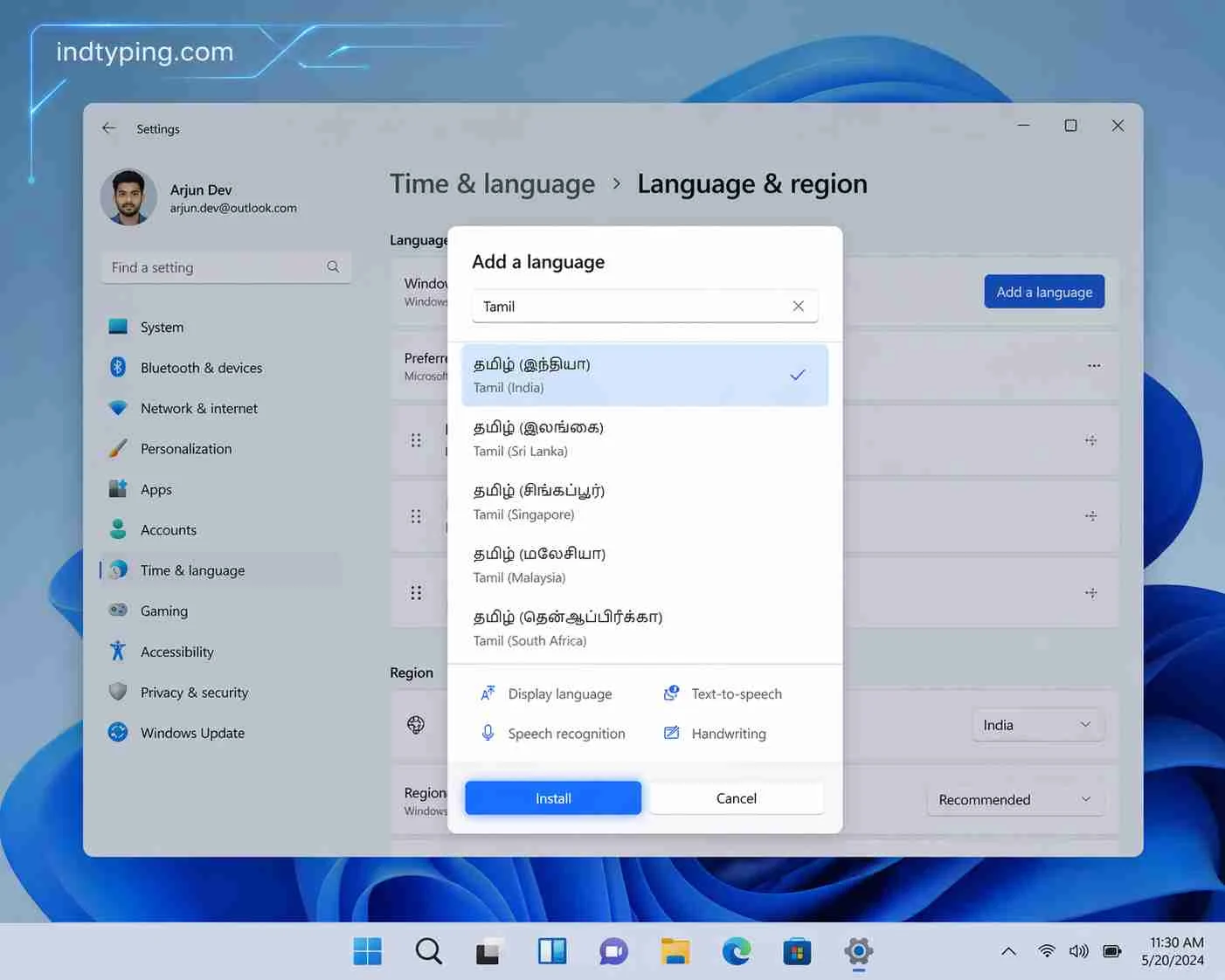
Fig 1: Installing the language pack directly from Windows Settings is the most effective solution.
Method 2: Installing Universal Google Noto Fonts
Sometimes, installing a language pack is not enough to completely fix font rendering issues on Windows 11, especially if you are dealing with obscure documents or specialized design software like Adobe Photoshop or Premiere Pro. In such cases, you need a universal fallback font. Google created the “Noto” (No Tofu) font family specifically to eradicate the square box problem globally.
To manually install these fonts:
- Go to the Google Fonts website and search for “Noto Sans” followed by your language (e.g., Noto Sans Tamil, Noto Sans Devanagari).
- Download the font family (it will download as a ZIP file).
- Extract the ZIP file to a folder on your computer.
- Select all the extracted font files (.ttf or .otf), right-click on them, and select “Install” or “Install for all users”.
Method 3: Fixing Font Rendering in Web Browsers (Chrome & Edge)
What if the text looks perfectly fine in Microsoft Word, but appears broken or disjointed when you browse the internet? Browsers sometimes struggle with rendering complex conjunct characters (like the half-letters in Hindi or the combinations in Tamil).
If you want to fix font rendering issues on Windows 11 specifically within your web browser, the issue usually lies within the default font settings of Chrome or Edge.
How to properly fix font rendering issues on Windows 11 browsers:
- Open Google Chrome or Microsoft Edge.
- Click the three dots in the top right corner and select Settings.
- Search for “Fonts” in the settings search bar and click on Customize fonts.
- Scroll down to the “Standard font” and “Complex script font” options. Ensure that a reliable Unicode font (like Arial Unicode MS, Nirmala UI, or Noto Sans) is selected instead of a generic or stylish Latin font.
- Restart your browser.
Using IndTyping as a Safe Haven for Rendering
If you are in a rush and cannot restart your computer or tweak system settings to fix font rendering issues on Windows 11, using online phonetic tools is a great temporary bypass. Web platforms like IndTyping use web-safe fonts embedded directly into the code.
For example, if you urgently need to draft a message in Haryanvi, simply visit our English to Haryanvi Typing Tool. The text will render beautifully inside our text box regardless of your system settings. You can then copy the perfectly formatted Unicode text and paste it wherever you need it.
Frequently Asked Questions (FAQ)
1. Why is the Tamil text showing as boxes on Windows 11 but fine on my phone?
Smartphones (Android and iOS) come pre-installed with almost all global Unicode fonts by default. Windows 11, to save space, requires you to manually download specific regional language packs via the Settings app to view them properly.
2. I installed the language pack, but Adobe Photoshop still shows broken Hindi text. What do I do?
Adobe software has its own text engine. To completely fix font rendering issues on Windows 11 for Adobe apps, go to Edit > Preferences > Type in Photoshop. Change the text engine option from “Latin and East Asian” to “World-Ready Layout”. Restart Photoshop.
3. Will downloading third-party fonts help to fix font rendering issues on Windows 11?
It is always best to download fonts from trusted sources like Google Fonts or Microsoft. Downloading random fonts from unknown sites can sometimes expose your system to malware or cause further registry issues.
Final Verdict and Takeaway
Dealing with broken text can disrupt your workflow and ruin your digital experience. However, once you learn how to fix font rendering issues on Windows 11, it takes less than five minutes to resolve permanently. By installing the proper language packs, ensuring your browser is set up correctly, and utilizing universal fonts like Google Noto, you guarantee a seamless, beautiful reading and writing experience in any Indian language.
Don’t let technical glitches stop you from embracing your mother tongue online. Fix your settings today, and start creating amazing regional content!